AWS Athena
Athena is an interactive query service that allows users to analyze data directly in Amazon S3 using standard SQL.
The Athena destination stores data as Parquet files in S3 buckets and creates external tables in AWS Glue Catalog.
ingestr supports Athena as a destination.
URI format
The URI format for Athena is as follows:
athena://?bucket=<your-destination-bucket> \
    access_key_id=<your-aws-access-key-id> \
    secret_access_key=<your-aws-secret-access-key> \
    region_name=<your-aws-region>
URI parameters:
bucket(required): The name of the bucket where the data will be stored, containing the Parquet files that Athena will work with, e.g.your_bucket_nameors3://your_bucket_name.access_key_idandsecret_access_key(required): These are AWS credentials that will be used to authenticate with AWS services like S3 and Athena.session_token(optional): The session token for temporary credentials.region_name(required if there's no local profile found): The AWS region of the Athena service and S3 buckets, e.g.eu-central-1workgroup(optional): The name of the Athena workgroup, e.g.my_groupprofile(optional): The name of the AWS profile to use, e.g.my_profileendpoint_url(optional): An Athena-compatible endpoint to use instead of the default AWS one, e.g.https://athena.example.com.http://is only accepted forlocalhost, e.g.http://localhost:4566for a local emulator
You have two ways of providing credentials:
- Provide
access_key_idandsecret_access_keydirectly in the URI. - Provide the name of the AWS profile to use in the
profileparameter.
If there's no access key and secret key provided, ingestr will try to find the credentials in the local AWS credentials file.
Setting up an Athena Integration
Athena requires a bucket, access_key_id, secret_access_key and region_name to access the S3 bucket and run queries.
Step 1: Create an S3 Bucket for Results
- Go to the Amazon S3 Console
- Click Create bucket
- Enter a bucket name (e.g., "my-athena-results")
- Select the same region where you'll use Athena
- Click Create bucket
Step 2: Configure an Athena Workgroup
Athena needs a Query result location configured on the workgroup it runs through. ingestr uses the account's primary workgroup by default.
- Go to the Athena Console → Workgroups
- Edit the existing
primaryworkgroup (or create a new one) - Set Query result location to a prefix in the bucket from Step 1 (e.g.
s3://my-athena-results/query-results/) and save - If you created a new workgroup, pass its name via the
workgroupURI parameter
Step 3: Create an IAM User with Permissions
- Go to the AWS IAM Console
- Click Users → Add users
- Enter a username (e.g., "athena-integration")
- Select Access key - Programmatic access
- Attach the following managed policies:
AmazonAthenaFullAccess- For Athena query accessAmazonS3FullAccess- For S3 bucket access (or create a more restrictive policy)AWSGlueConsoleFullAccess- For Glue Catalog access
Step 4: Get Access Keys
- After creating the user, copy the Access key ID and Secret access key
- Store these credentials securely (the secret key is shown only once)
Step 5: Note Your Region
Ensure you know the AWS region where your Athena is configured (e.g., us-east-1, eu-central-1).
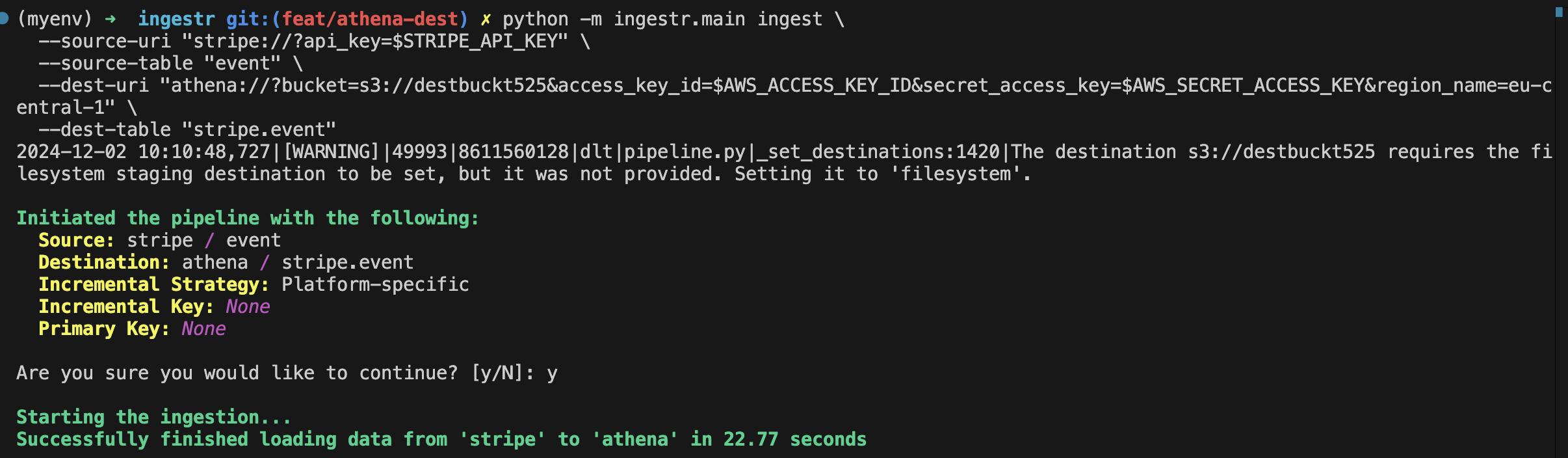
Once you have all the credentials:
ingestr ingest \
--source-uri "stripe://?api_key=key123" \
--source-table 'event' \
--dest-uri "athena://?bucket=bucket_123&access_key_id=access_123&secret_access_key=secret_123®ion_name=eu-central-1" \
--dest-table 'stripe.event'This is a sample command that will copy the data from the Stripe source into Athena.