Google Analytics
Google Analytics is a service for web analytics that tracks and provides data regarding user engagement with your website or application.
ingestr supports Google Analytics as a source.
URI format
The URI format for Google Analytics is as follows:
googleanalytics://?credentials_path=/path/to/service/account.json&property_id=<property_id>Alternatively, you can use base64 encoded credentials:
googleanalytics://?credentials_base64=<base64_encoded_credentials>&property_id=<property_id>URI parameters:
credentials_path: Optional. The path to the service account JSON file. If omitted, the source uses Application Default Credentials (theGOOGLE_APPLICATION_CREDENTIALSenv var, or thegcloud auth application-default logintoken on your machine).credentials_base64: Optional. The base64-encoded service account JSON (alternative tocredentials_path).property_id: It is a unique number that identifies a particular property on Google Analytics. Follow this guide to know more about property ID.
To authenticate with your own Google account instead of a service account key, run gcloud auth application-default login and omit both credential parameters:
googleanalytics://?property_id=<property_id>Setting up a Google Analytics Integration
To connect to Google Analytics, you need to create a Google Cloud service account and grant it access to your GA4 property.
Step 1: Create a Google Cloud Project
- Go to Google Cloud Console
- Create a new project or select an existing one
- Note your project ID
Step 2: Enable the Google Analytics Data API
- In the Cloud Console, go to APIs & Services → Library
- Search for "Google Analytics Data API"
- Click on it and then click Enable
Step 3: Create a Service Account
- Go to APIs & Services → Credentials
- Click Create Credentials → Service Account
- Enter a name (e.g., "ga-integration") and click Create
- Skip the optional steps and click Done
Step 4: Generate a JSON Key
- Click on the service account you just created
- Go to the Keys tab
- Click Add Key → Create new key
- Select JSON and click Create
- The JSON key file will be downloaded automatically - save it securely
Step 5: Grant Access in Google Analytics
- Open Google Analytics
- Go to Admin (gear icon)
- In the Property column, click Property Access Management
- Click the + button and select Add users
- Enter the service account email (found in your JSON file as
client_email) - Select Viewer role (minimum required)
- Click Add
The JSON file path is your credentials_path, and your GA4 Property ID is the property_id for the ingestr URI.
Available Tables:
| Table | PK | Inc Key | Inc Strategy | Details |
|---|---|---|---|---|
| realtime | ingested_at | - | merge | Retrieves real-time analytics data based on specified dimensions and metrics. Format: realtime:<dimensions>:<metrics>:<minutes_ranges>. Supports incremental loading by ingestion timestamp. |
custom | datetime_dimension | datetime_dimension | merge | Retrieves custom reports based on specified dimensions and metrics. Format: custom:<dimensions>:<metrics> |
Custom reports
Custom reports: allow you to retrieve data based on specificdimensionsandmetrics.
Custom Table Format:
custom:<dimensions>:<metrics>Parameters:
dimensions(required): A comma-separated list of dimensions to retrieve.metrics(required): A comma-separated list of metrics to retrieve.
Example
ingestr ingest \
    --source-uri "googleanalytics://?credentials_path="ingestr/src/g_analytics.json&property_id=id123" \
    --source-table "custom:date:activeUsers" \
    --dest-uri "duckdb:///analytics.duckdb" \
    --dest-table "dest.custom"
This command will retrieve report and save it to the dest.custom table in the DuckDB database.

Realtime reports
Realtime reports: allows you to retrieve data based on specific dimensions, metrics, with optional minutes_ranges.
Realtime Report Table Format:
realtime:<dimensions>:<metrics>realtime:<dimensions>:<metrics>:<minutes_ranges>Parameters:
dimensions(required): A comma-separated list of dimensions to retrieve.metrics(required): A comma-separated list of metrics to retrieve.minutes_ranges(optional): Allows you to specify time windows for retrieving data. You can define up to two time ranges in your query, formatted as comma-separated values (e.g., "0-5,25-29"). Each range represents minutes in the past from the current time. If no minute_ranges are specified, the system defaults to retrieving data from the last 30 minutes. For more information read here
Example
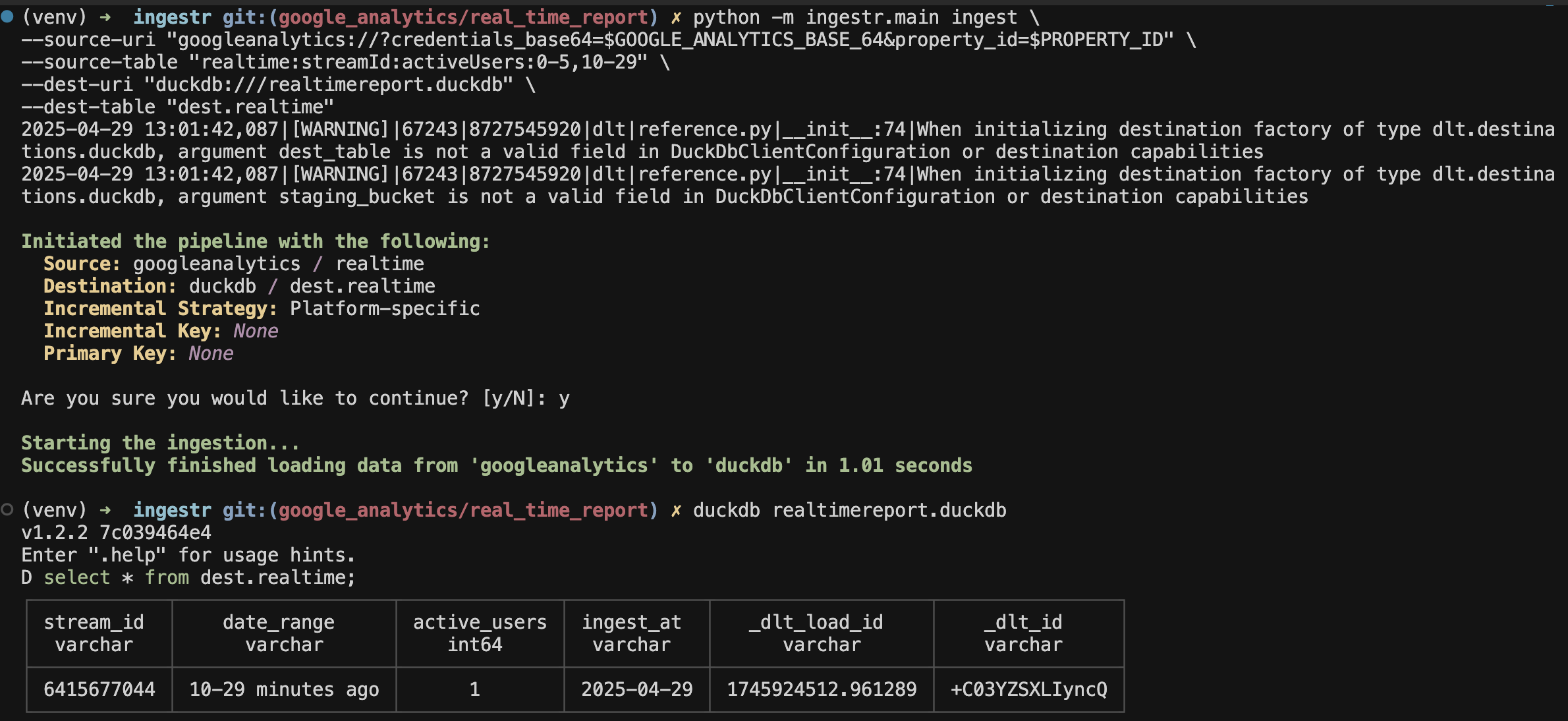
ingestr ingest \
    --source-uri "googleanalytics://?credentials_path="ingestr/src/g_analytics.json&property_id=id123" \
    --source-table "realtime:streamId:activeUsers:0-4,10-29" \
    --dest-uri "duckdb:///analytics.duckdb" \
    --dest-table "dest.realtime"
This command will retrieve report and save it to the dest.realtime table in the DuckDB database.